
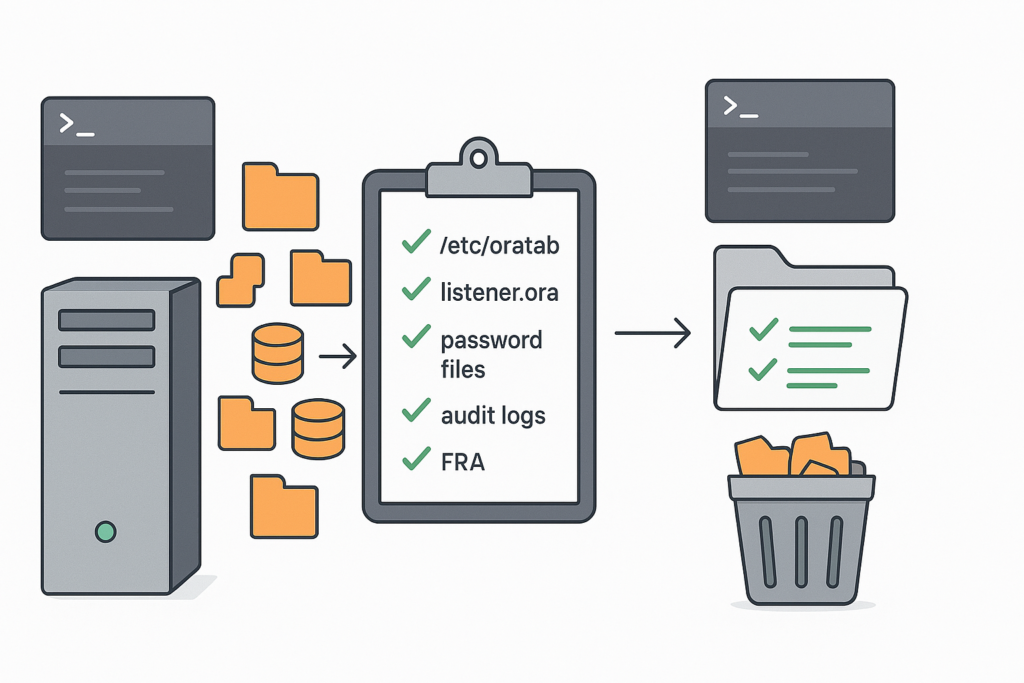
Two weeks ago, I dropped a development CDB called TESTCDB on one of our lab servers. The DROP DATABASE command worked perfectly—but that was just the beginning. The server was still littered with configuration files, diagnostic logs, and startup scripts pointing to a database that no longer existed.
If you’ve ever run DROP DATABASE INCLUDING CONTENTS AND DATAFILES and thought you were done, only to find remnants everywhere—this comprehensive cleanup checklist ensures nothing is left behind.
The Problem: DROP DATABASE Doesn’t Clean Everything
When you execute DROP DATABASE, Oracle removes:
- ✅ Datafiles
- ✅ Controlfiles
- ✅ Redo logs
- ✅ Data dictionary entries
But Oracle does NOT clean up:
- ❌ /etc/oratab entries
- ❌ Listener configuration
- ❌ Password files
- ❌ SPFILE/PFILE
- ❌ Diagnostic directories (ADR)
- ❌ Audit files
- ❌ Archive logs
- ❌ Fast Recovery Area
- ❌ Startup scripts
This incomplete cleanup causes problems:
- Failed database startups
- Listener errors
- Wasted disk space
- Confusion for other DBAs
- Monitoring alerts for non-existent databases
Prerequisites for Complete Cleanup
Before starting cleanup, verify the database is actually dropped:
# Verify database process is not running
ps -ef | grep pmon | grep -i dbacdb
# Should return nothing

# Check listener status
lsnrctl status | grep -i dbacdb
# Should show no services (we'll clean this up)
Important: Never perform cleanup on a running database. Confirm it’s already dropped.
Step-by-Step Complete Cleanup
Step 1: Remove /etc/oratab Entry
The /etc/oratab file is the master registry of databases on your server.
# View current oratab entries on dbhost01
cat /etc/oratab
Sample Output (Before Cleanup):
# Database entries
PRODCDB:/u01/app/oracle/product/19.0.0/dbhome_1:N
DBACDB:/u01/app/oracle/product/19.0.0/dbhome_1:N
DEVCDB:/u01/app/oracle/product/19.0.0/dbhome_1:N
Remove the dropped database entry:
# Backup oratab first
sudo cp /etc/oratab /etc/oratab.backup_$(date +%Y%m%d)

# Remove DBACDB entry using sed or
sudo sed -i '/^DBACDB:/d' /etc/oratab

# Verify removal
cat /etc/oratab | grep -i dbacdb
# Should return nothing
Manual Alternative:
sudo vi /etc/oratab
# Delete the line: DBACDB:/u01/app/oracle/product/19.0.0/dbhome_1:N
# Save and exit
Step 2: Clean Up Listener Configuration
Remove database services from listener configuration:
# Check listener.ora location
echo $ORACLE_HOME/network/admin/listener.ora

# Backup listener.ora
cp $ORACLE_HOME/network/admin/listener.ora $ORACLE_HOME/network/admin/listener.ora.backup

# Edit listener.ora
vi $ORACLE_HOME/network/admin/listener.ora
Remove entries like:
SID_LIST_LISTENER =
  (SID_LIST =
    (SID_DESC =
      (GLOBAL_DBNAME = dbacdb)
      (ORACLE_HOME = /u01/app/oracle/product/19.0.0/dbhome_1)
      (SID_NAME = DBACDB)
    )
  )
Also clean tnsnames.ora:
# Edit tnsnames.ora
vi $ORACLE_HOME/network/admin/tnsnames.ora

# Remove DBACDB connection entries
# Save and reload listener
lsnrctl reload

# Verify service is gone
lsnrctl status | grep -i dbacdb
# Should return nothing
Step 3: Remove Password File
Password files typically reside in $ORACLE_HOME/dbs:
# Navigate to dbs directory
cd $ORACLE_HOME/dbs

# List password files
ls -l orapw*

# Sample output:
# orapwPRODCDB
# orapwDBACADB  <-- Remove this
# orapwDEVCDB

# Remove password file
rm -f orapwDBACADB

# Verify removal
ls -l orapw* | grep -i dbacdb
# Should return nothing
Step 4: Remove SPFILE and PFILE
Remove initialization parameter files:
# Still in $ORACLE_HOME/dbs directory
ls -l *DBACDB*

# Sample output:
# spfileDBACDB.ora
# initDBACDB.ora
# snapcf_DBACDB.f  (controlfile snapshot)

# Remove all database-specific files
rm -f spfileDBACDB.ora
rm -f initDBACDB.ora
rm -f snapcf_DBACDB.f

# Verify cleanup
ls -l *DBACDB*
# Should return: No such file or directory
Step 5: Clean Diagnostic Directories (ADR)
Oracle’s Automatic Diagnostic Repository accumulates significant space:
# Navigate to diagnostic base
cd $ORACLE_BASE/diag/rdbms

# List database directories
ls -la
# You'll see: dbacdb/  prodcdb/  devcdb/

# Check size before cleanup
du -sh dbacdb
# Example: 2.3G

# Remove entire diagnostic directory
rm -rf dbacdb

# Verify removal
ls -la | grep -i dbacdb
# Should return nothing
Using ADRCI (Alternative Method):
adrci

# Inside ADRCI prompt
adrci> show homes
# Lists: diag/rdbms/dbacdb/DBACDB

adrci> set home diag/rdbms/dbacdb/DBACDB
adrci> show alert -tail 20
# (Optional: review final alert log entries)

adrci> purge -age 0
# Purges all diagnostic data

adrci> exit

# Then remove directory
rm -rf $ORACLE_BASE/diag/rdbms/dbacdb
Step 6: Remove Audit Files
Audit files can consume considerable space:
# Check admin directory
cd $ORACLE_BASE/admin/DBACDB/adump

# Check space usage
du -sh .
# Example: 843M

# Remove all audit files
rm -rf *

# Remove entire admin structure
cd $ORACLE_BASE/admin
rm -rf DBACDB

# Verify removal
ls -la | grep -i dbacdb
# Should return nothing
Step 7: Clean Fast Recovery Area
If using Fast Recovery Area (FRA):
# Navigate to FRA location
cd $ORACLE_BASE/fast_recovery_area

# List database directories
ls -la
# Shows: DBACDB/  PRODCDB/  DEVCDB/

# Check FRA space usage
du -sh DBACDB
# Example: 15G (backups, archive logs)

# Remove FRA directory
rm -rf DBACDB

# Verify cleanup
df -h $ORACLE_BASE/fast_recovery_area
# Should show increased free space
Step 8: Remove Archive Logs (Non-FRA)
If archive logs are stored outside FRA:
# Check archive log destination from old parameter file
# (if you saved initDBACDB.ora before deleting)
# LOG_ARCHIVE_DEST_1='LOCATION=/archive/DBACDB'

# Remove archive log directory
cd /archive
ls -la | grep -i dbacdb

du -sh DBACDB
# Example: 8.2G

rm -rf DBACDB

# Verify removal
ls -la | grep -i dbacdb
# Should return nothing
Step 9: Check for Remaining Datafiles
Even after DROP DATABASE INCLUDING CONTENTS AND DATAFILES, verify:
# Search entire file system for DBACDB directories
find /u01 /u02 -type d -iname "*dbacdb*" 2>/dev/null

# If any directories found:
# /u01/oradata/DBACDB  <-- Should have been dropped
# /u02/fra/DBACDB      <-- Clean up manually

# Remove any remaining directories
rm -rf /u01/oradata/DBACDB
rm -rf /u02/fra/DBACDB
Step 10: Remove Startup Scripts
Check for custom startup scripts:
# Check systemd services
ls -la /etc/systemd/system/oracle*
# Look for: oracle-DBACDB.service

sudo rm -f /etc/systemd/system/oracle-DBACDB.service

# Reload systemd
sudo systemctl daemon-reload

# Check init.d scripts (older systems)
ls -la /etc/init.d/dbora*
sudo rm -f /etc/init.d/dbora_DBACDB
Step 11: Clean Up Environment Scripts
Remove database-specific environment settings:
# Check user profile
vi ~/.bash_profile

# Remove lines like:
# alias dbacdb='export ORACLE_SID=DBACDB; sqlplus / as sysdba'
# export DBACDB_HOME=/u01/app/oracle/product/19.0.0/dbhome_1

# Reload profile
source ~/.bash_profile
Step 12: RMAN Catalog Cleanup (If Used)
If using RMAN catalog:
-- Connect to RMAN catalog
rman target / catalog rman/password@catdb

-- List registered databases
RMAN> list db_unique_name all;

-- Unregister dropped database
RMAN> unregister database 'DBACDB';

-- Verify removal
RMAN> list db_unique_name all;
-- DBACDB should not appear
Verification Checklist
After cleanup, verify everything is removed:
# 1. Check processes
ps -ef | grep -i dbacdb
# Result: Should show only your grep command

# 2. Check oratab
cat /etc/oratab | grep -i dbacdb
# Result: No output

# 3. Check listener
lsnrctl status | grep -i dbacdb
# Result: No output

# 4. Check $ORACLE_HOME/dbs
ls -la $ORACLE_HOME/dbs/*DBACDB*
# Result: No such file or directory

# 5. Search entire system
find /u01 /u02 -iname "*dbacdb*" 2>/dev/null
# Result: No output (or only expected files)

# 6. Check disk space
df -h
# Should show increased free space
Common Issues During Cleanup
Issue 1: Permission Denied on /etc/oratab
Error: Permission denied: /etc/oratab
Solution:
# Use sudo for system files
sudo sed -i '/^DBACDB:/d' /etc/oratab
Issue 2: Directory Not Empty
Error: rm: cannot remove 'DBACDB': Directory not empty
Solution:
# Force recursive removal
rm -rf DBACDB

# Or investigate what's inside
ls -la DBACDB
Issue 3: Files Still Showing in find Command
Error: Finding files like /tmp/DBACDB_temp
Solution:
# Review each file before deleting
file /tmp/DBACDB_temp

# If safe to remove:
rm -f /tmp/DBACDB_temp
Best Practices for Database Cleanup
1. Document Before Cleanup
Create a cleanup checklist:
Database: DBACDB
Server: dbhost01
Date: 2026-01-19
DBA: Your Name
Reason: Lab environment decommission
Backup Location: /backup/final_DBACDB_backup.tar.gz
2. Take Final Backup
Before cleanup:
# Archive important directories
tar -czf /backup/DBACDB_final_$(date +%Y%m%d).tar.gz \
  $ORACLE_BASE/admin/DBACDB \
  $ORACLE_BASE/diag/rdbms/dbacdb \
  $ORACLE_HOME/dbs/*DBACDB*
3. Notify Team Members
Send notification:
Subject: Database Cleanup - DBACDB on dbhost01

The database DBACDB has been dropped and completely cleaned up from dbhost01.

All configuration files, diagnostic logs, and datafiles have been removed.

If you have any scripts or tools referencing this database, please update them accordingly.
Space Reclaimed After Cleanup
Typical space savings after complete cleanup:
| Component | Typical Size | Location |
|---|---|---|
| Datafiles | 5-50 GB | /u01/oradata |
| Diagnostic Logs | 2-5 GB | $ORACLE_BASE/diag |
| Audit Files | 500 MB – 2 GB | $ORACLE_BASE/admin |
| Archive Logs | 5-20 GB | FRA or custom location |
| FRA Backups | 10-100 GB | $ORACLE_BASE/fast_recovery_area |
| Total | 22-177 GB | Various |
Check reclaimed space:
df -h | grep -E "u01|u02"
When to Use This Cleanup
Use complete cleanup when:
- Permanently decommissioning a database
- Repurposing the server
- Database was dropped but cleanup wasn’t performed
- Freeing up maximum disk space
- Eliminating confusion about database status
Don’t use if:
- You plan to recreate the database with same name
- Need to preserve diagnostic logs for analysis
- Required to keep audit trail for compliance
Conclusion
Dropping an Oracle database is just the first step—complete cleanup requires removing all configuration files, diagnostic directories, and system registrations. This 13-step checklist ensures nothing is left behind.
The key areas to clean:
- System files: /etc/oratab, listener.ora, tnsnames.ora
- Oracle files: password files, SPFILE, PFILE
- Directories: diagnostics, audit, FRA, admin
- Registrations: RMAN catalog, Grid/Restart config
Remember: Always document the cleanup, take final backups, and verify with multiple checks. A proper cleanup prevents future confusion and reclaims significant disk space.
Have you encountered unexpected issues during Oracle database cleanup? Share your experience in the comments!